Services
Affected Platforms
Summary
Microsoft Teams Rooms on Windows app 4.19 update allows joining a Teams live event as an attendee. The rollout will begin mid-November and end by mid-March 2024. Users can follow specific steps to join the event and enjoy the streaming experience. It is recommended to notify users and update training and documentation.
Details
Updated February 25, 2024: We have updated the rollout timeline below. Thank you for your patience.
The latest version of Teams Rooms on Windows app 4.19 update includes the support joining a Teams live event as an attendee.
This message is associated with Microsoft 365 Roadmap ID 169881.
When this will happen:
We will begin rolling out mid-November and expect to complete it by mid-March 2024 (previously mid-February).
How this will affect your organization:
Teams Rooms on Windows can now join a Teams live event as an attendee and watch the streaming experience. Please follow the steps below:
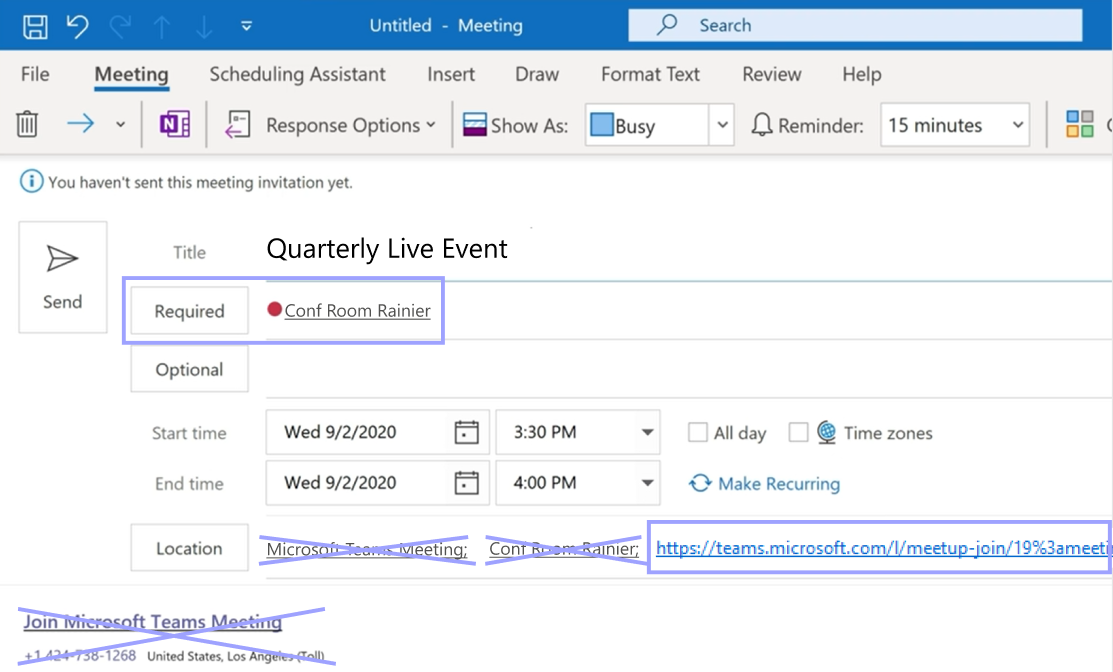
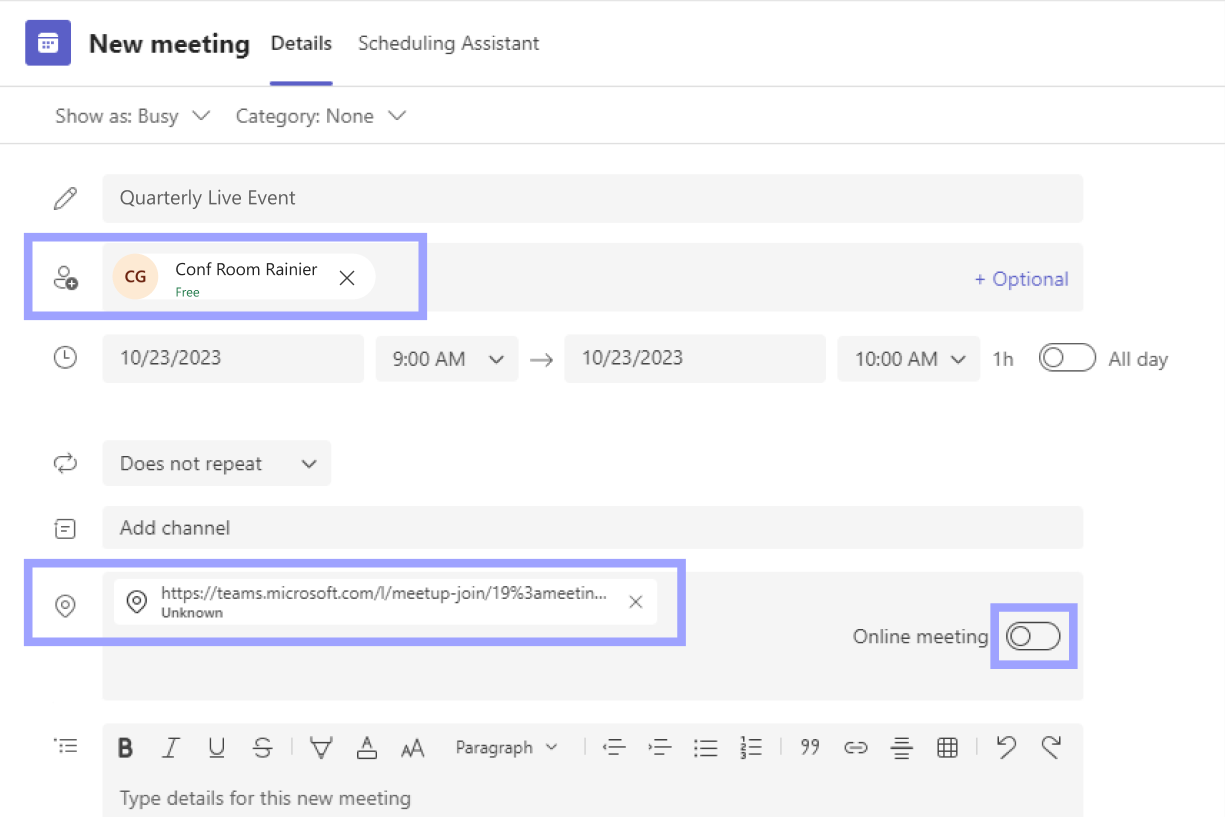
- Create a meeting using your work account’s Teams Calendar or Outlook Calender on desktop or mobile.
- Add a conference room (a Microsoft Teams Rooms account) as an attendee directly to the meeting invite.
- Remove any values in the “Location†and "Body text†fields on the invite. Please make sure the invite does NOT attach any other Teams meeting link that can be automatically created depending on your setting.
- Copy and paste a Teams live event link for attendees into the “Location†field on your invite. Don’t paste it in the "Body text†field.
- Send the meeting invite.
- The Microsoft Teams Rooms on Windows at the conference room you invited should get the invite and show the “Join†button.
- Click the “Join†button and enjoy the streaming experience for Teams live event attendees.
Outlook Example Image:
Teams Example Image:
Microsoft Teams Rooms Console during a Teams Live Event as an Attendee:
What you need to do to prepare:
Please notify your users about this new experience and update your training and documentation as appropriate.